


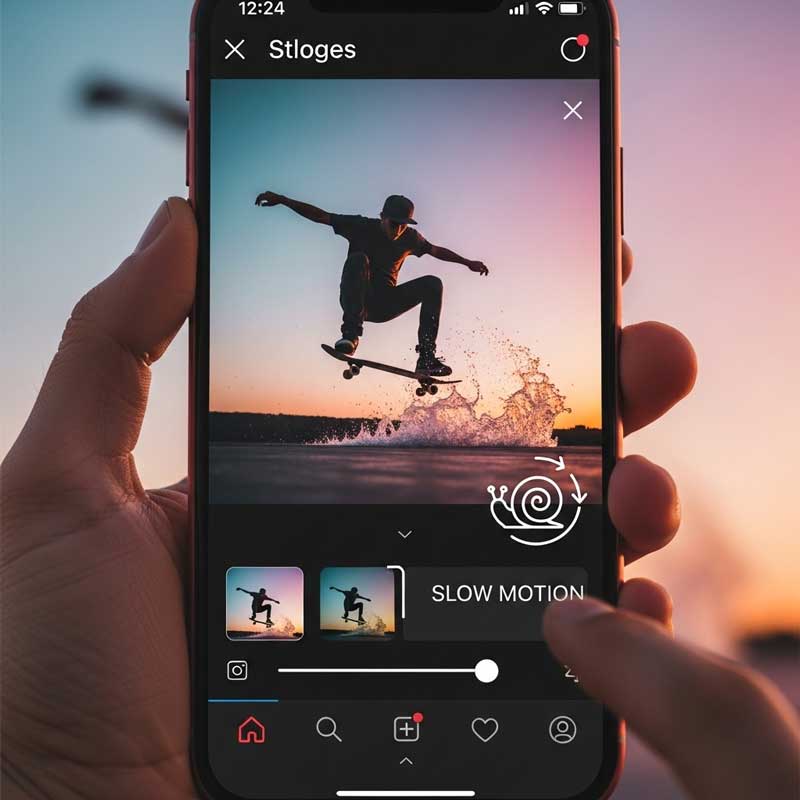
You can put a slow motion video on your Instagram Story using Instagram’s built-in Reels speed control, the Boomerang SlowMo effect, your iPhone’s Slo-Mo camera, your Android’s slow motion mode, or a third-party app like CapCut or InShot. This guide covers all five methods with exact steps, plus a comparison of your options, tips for better quality, and fixes for the most common problems.
All Methods at a Glance
| Method | Tools Needed | Difficulty | Best For | Quality |
|---|---|---|---|---|
| Instagram Reels Speed Control | Instagram app (iOS/Android) | Easy | Quick slow motion while recording | Good |
| Boomerang SlowMo | Instagram app | Easy | Short looping slow motion clips | Good |
| iPhone Slo-Mo Camera | iPhone Camera app | Easy | High-quality slow motion (120fps/240fps) | Excellent |
| Android Slow Motion Mode | Android Camera app (if available) | Easy | Built-in slow motion recording | Good–Excellent |
| CapCut / InShot / Adobe Rush | Third-party editing app | Medium | Slowing down existing videos, custom speeds | Excellent |

Method 1: Using Instagram Reels Speed Control (iPhone & Android)
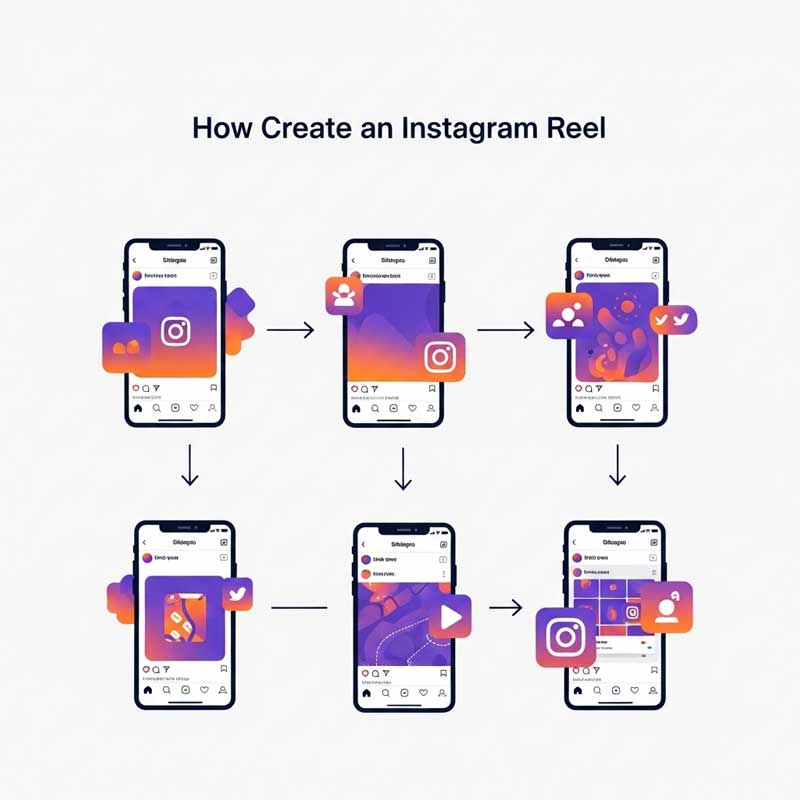
This is the fastest method — no extra apps needed, and you can control speed while recording directly in Instagram.
- Open Instagram and swipe right to open the camera
- Tap Reels at the bottom of the screen
- Tap the Speed icon (labeled “1x”) on the left sidebar
- Select 0.3x (very slow) or 0.5x (half speed) for slow motion
- Record your video or upload one from your gallery
- Add music, text, stickers, or effects
- Tap Next → Share to Story or Reels
Note: The speed control in Reels applies to recording — if you want to slow down a video you’ve already filmed, use Method 5 (CapCut/InShot).
Method 2: Using Boomerang SlowMo

Boomerang’s SlowMo effect creates a short, looping video that plays in slow motion and then reverses — ideal for dramatic reveals, product shots, or funny moments.
- Open Instagram and swipe right to open the Story camera
- Tap Boomerang from the options at the bottom
- Record a short video clip
- Tap the infinity symbol (∞) icon at the top of the screen
- Select SlowMo from the effect options
- Add text, stickers, or music
- Share to your Story
Method 3: Using iPhone Slo-Mo Camera (Best Quality)
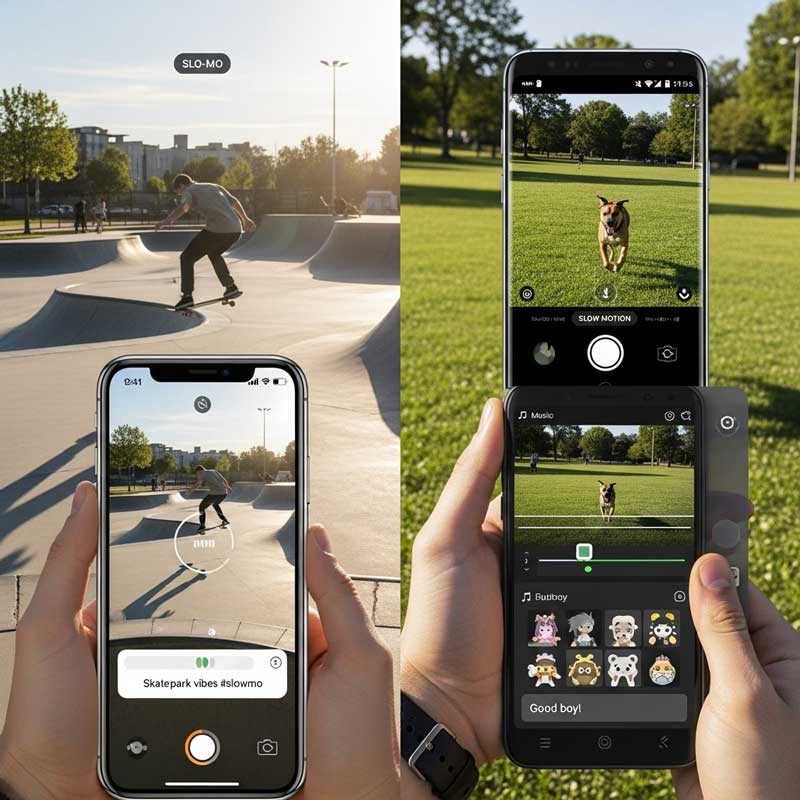
iPhone’s native Slo-Mo mode records at 120fps or 240fps, which gives you the smoothest, highest-quality slow motion results. This is the recommended method for anyone with an iPhone.
- Open the Camera app on your iPhone
- Swipe the mode selector to Slo-Mo
- Tap the screen to focus on your subject
- Press record and capture your slow motion footage
- Open the video in Photos to edit which portions play in slow motion (drag the vertical bars in the timeline)
- Open Instagram and create a new Story
- Upload the Slo-Mo video from your camera roll
- Add music, stickers, or text and share
| iPhone Model | Slo-Mo Options Available |
|---|---|
| iPhone 6 and later | 120fps at 720p or 1080p |
| iPhone 6 Plus and later | 240fps at 720p |
| iPhone 13 Pro and later | 120fps at 4K |
Method 4: Using Android Camera Slow Motion Mode
Most modern Android phones (Samsung Galaxy, Google Pixel, OnePlus, etc.) have a slow motion mode in the native Camera app, though the location varies by brand.
- Open your Android Camera app
- Look for Slow Motion or Super Slow-Mo in the shooting modes (swipe or tap the mode selector)
- Record your video in slow motion
- Open Instagram and create a new Story
- Upload the slow motion video from your gallery
- Edit and share
| Android Brand | Where to Find Slow Motion | Frame Rate |
|---|---|---|
| Samsung Galaxy | Camera → More → Slow Motion or Super Slow-Mo | 240fps or 960fps (Super Slow-Mo) |
| Google Pixel | Camera → More → Slow Motion | 240fps |
| OnePlus | Camera → Slow Motion mode | 120fps or 240fps |
| Other Android | Check Camera app modes — may vary | Depends on hardware |
Method 5: Using Third-Party Apps (CapCut, InShot, etc.)
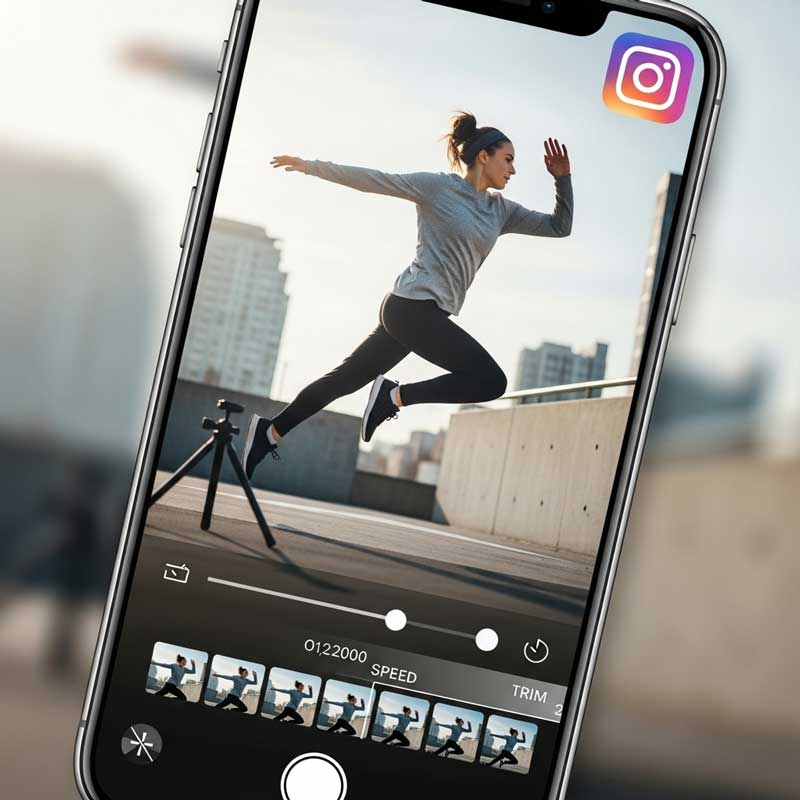
Use this method when you want to slow down a video you’ve already recorded — not while you’re recording. Third-party apps give you the most precise control over which sections are slowed down and by how much.
- Download CapCut (free, recommended) or InShot from your app store
- Open the app and create a new project
- Import the video you want to slow down
- Tap the video clip in the timeline → tap Speed
- Choose Normal (whole clip) or Curve (specific sections)
- Set speed to 0.5x (half speed) or lower for slow motion
- Add music, text, or effects as desired
- Export at 1080p or higher
- Upload the exported video to your Instagram Story
| App | Platform | Free? | Best Feature for Slow Motion |
|---|---|---|---|
| CapCut | iOS & Android | Yes | Curve speed (slow specific sections precisely) |
| InShot | iOS & Android | Yes (watermark-free paid) | Simple speed slider, easy export |
| Adobe Premiere Rush | iOS & Android | Free tier available | Professional-quality output |
| Slow Motion Video FX | iOS & Android | Yes | Dedicated slow motion app — simple interface |
| VN Video Editor | iOS & Android | Yes | No watermark, good export quality |
How to Add Music to Your Slow Motion Story
- After uploading your slow motion video to an Instagram Story, tap the sticker icon
- Tap Music
- Search for a song or browse by mood/genre
- Use the slider to select the specific part of the song to sync with your slow motion moment
- Add lyrics display if desired
- Share your story
Pro tip: Dramatic, orchestral, or lo-fi music pairs especially well with slow motion. Upbeat songs often feel out of sync with the slowed visual pace.
Tips for Better Slow Motion Videos on Instagram
| Tip | Why It Matters | How to Apply It |
|---|---|---|
| Record at 120fps or 240fps | Higher frame rate = smoother slow motion. 60fps slowed down looks choppy; 240fps looks cinematic. | Set in Camera settings before recording — not something you can add after |
| Use good lighting | Slow motion requires more light because the sensor captures more frames per second | Record near a window or outdoors — avoid dim indoor lighting |
| Stabilize your camera | Shaky footage is worse in slow motion — every tiny movement is amplified | Use a tripod, phone gimbal, or brace your elbows against your body |
| Choose the right moment | Not all moments benefit from slow motion — pick actions with visible movement | Good subjects: pouring liquids, hair movement, sports, confetti, reactions |
| Slow only part of the clip | Full-clip slow motion can feel monotonous — selective slow motion is more dynamic | Use CapCut’s “Curve” speed feature or iPhone’s Photos trim to choose sections |
| Preview before posting | What looks good in the editor may look different in the Story format | Use Instagram’s preview feature before hitting Share |
Troubleshooting: Common Slow Motion Video Problems
| Problem | Most Likely Cause | Fix |
|---|---|---|
| Video looks blurry | Low lighting or low frame rate in original recording | Record at 120fps+ in well-lit conditions. Export at 1080p minimum before uploading. |
| Audio and video out of sync | Slowing down video doesn’t automatically slow down audio | In CapCut or InShot, detach the audio, adjust timing separately, then export together |
| Choppy/jerky slow motion | Original video was recorded at too low a frame rate | You need to re-record at 120fps or 240fps — frame rate can’t be added in post-production |
| Instagram won’t upload the video | File size too large, weak internet, or outdated app | Check your connection, compress the video slightly, and update Instagram |
| App keeps crashing | Outdated app version or insufficient phone storage | Update the app, free up storage, or restart your phone and try again |
| Music not syncing with slow motion | Music was added in Instagram after upload — timing doesn’t match | Add music to the video in CapCut before uploading — gives you precise sync control |
| Video quality drops after upload | Instagram compresses all uploaded videos | Enable High-Quality Uploads: Settings → Account → Data Usage → Use Less Mobile Data (OFF) |
FAQ: Slow Motion Videos on Instagram Story
How do I put a slow motion video on Instagram Story?
There are five ways to do it. The fastest: open Instagram, swipe right to the camera, select Reels, tap the Speed icon (1x), and choose 0.5x or 0.3x before recording. The highest quality: record in your iPhone’s Slo-Mo mode or Android’s Slow Motion mode, then upload from your camera roll. The most flexible: record normally first, then use CapCut to slow down specific sections of the clip, export at 1080p, and upload to your Story. The right method depends on whether you’re recording a new clip or working with existing footage.
Can I add slow motion to a video I already recorded?
Yes — this is where third-party apps like CapCut and InShot are essential. Instagram’s built-in speed control in Reels only works during recording, not on existing videos. In CapCut: import your video, tap the clip, tap Speed, and choose either Normal (applies the same speed to the whole clip) or Curve (lets you slow down specific sections while keeping other parts at normal speed). Export at 1080p or higher and upload to Instagram Story. InShot works similarly with a simpler interface.
Why does my slow motion video look blurry on Instagram?
There are two common causes. First, the original video was recorded at a low frame rate — if you record at 30fps and slow it down to 50%, you only have 15 effective frames per second, which creates motion blur and choppiness. The solution is to record at 120fps or 240fps before slowing down. Second, Instagram compresses uploaded videos, which can reduce quality. To minimize compression impact: export from your editing app at 1080p or higher, make sure your file is H.264 encoded, and turn off Instagram’s “Use Less Mobile Data” option in Settings → Account → Data Usage.
What frame rate should I use for slow motion Instagram Stories?
Record at 120fps minimum, ideally 240fps if your phone supports it. Here’s why: Instagram Stories play at approximately 30fps. If you record at 120fps and slow to 0.25x speed, you still have 30fps of footage — perfectly smooth. If you record at 30fps and slow to 0.25x, you drop to 7.5fps — extremely choppy. iPhone users can set this in Camera → Settings → Record Slo-Mo (choose 120fps at 1080p for everyday use, or 240fps at 720p for maximum slow motion effect). Check your Android camera settings for similar frame rate options.
How do I slow down only part of a video for Instagram Story?
Instagram’s built-in tools don’t let you slow down specific sections of an already-recorded video. Use CapCut for this — it’s free and has a feature called “Curve Speed” that lets you draw a custom speed curve: slow at one point, normal at another, slow again for the climax. This technique — slow into a moment, pause in dramatic slow motion, then resume normal speed — is very popular on Instagram and much more dynamic than slowing down the entire clip. After adjusting, export at 1080p and upload to your Story.
What is the best app for slow motion Instagram Stories?
CapCut is the most recommended free option — it’s available on both iOS and Android, has no watermark, supports custom speed curves, and exports at high quality. InShot is a close second for simplicity. Adobe Premiere Rush is best if you want professional-grade output. For Samsung Galaxy users, the native Super Slow-Mo mode (960fps) produces stunning results that don’t require any additional editing. If you’re purely an iPhone user, the native Slo-Mo camera combined with minimal editing in the Photos app is often all you need for simple slow motion Stories.
Can slow motion videos help grow my Instagram following?
Yes — but only when used intentionally. Slow motion works best for: dramatic reveals (products, transformations, before/after moments), visually interesting movement (water, hair, sports, dancing), and emotional story beats where you want the viewer to pause and feel something. Slow motion used for every story becomes predictable and loses impact. The accounts that grow fastest with slow motion use it selectively — saving it for the moments that genuinely benefit from the treatment. Combined with fitting music, a well-timed slow motion Story slide gets significantly more replies and saves than standard speed content.
Related Articles
| Article | Why It’s Relevant |
|---|---|
| How to Make Videos Loop on Instagram Story | Another video technique guide for Instagram Stories |
| Instagram Story Safe Zone | Make sure your slow motion video content isn’t cut off by UI elements |
| Navigation on Instagram Story | Understand story analytics — track if slow motion content retains viewers |
| How to Change Photo Shape in Instagram Story | Creative editing techniques to combine with slow motion |
| Instagram Story Sticker Placement | Where to place music and effect stickers on your slow motion stories |