

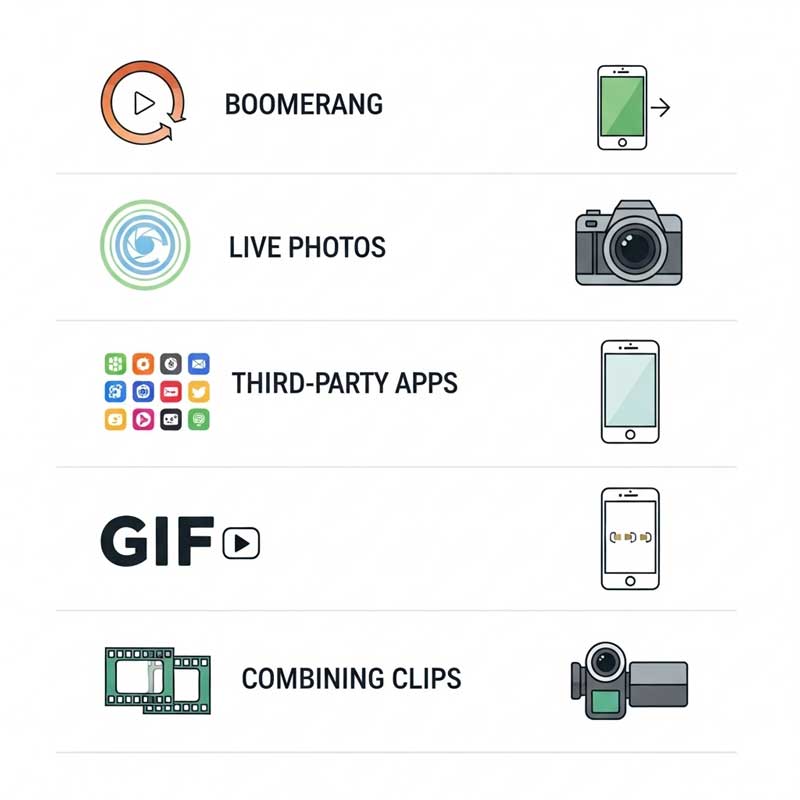
You can make a video loop on Instagram Story using Boomerang (fastest method), Live Photos on iPhone, third-party apps like CapCut, GIFs, or by combining clips. Each method has different strengths depending on how long your video is, what device you’re using, and how seamless you want the loop to be. This guide covers all five methods with step-by-step instructions.
All Methods to Loop Video on Instagram Story
| Method | Best For | Difficulty | Works On | Max Length |
|---|---|---|---|---|
| Instagram Boomerang | Quick fun loops, action shots | Easy | iOS & Android | ~3 seconds |
| Live Photos (iPhone) | Creative loops from still images | Easy | iPhone only | ~3 seconds |
| CapCut / InShot / Clideo | Custom loops, full control over duration | Medium | iOS & Android | Up to 60 sec (auto-split by Instagram) |
| GIFs | Short animated loops, reactions | Easy | iOS & Android | Short clips only |
| Combining Multiple Clips | Before/after, time-lapse, complex loops | Advanced | iOS & Android | Up to 60 sec |
Why Use Loop Videos on Instagram Stories?
| Benefit | Why It Works | Best Content Type |
|---|---|---|
| Increased story retention | Loops keep playing — viewers watch longer without tapping forward | Hypnotic motion, satisfying repetition |
| Highlighting key moments | Repetition draws attention to specific actions or details | Product demos, skill reveals, reactions |
| More memorable content | Loops are distinctive — they stand out from static images and normal videos | Announcements, teasers, transformations |
| Higher shareability | Clever or funny loops get forwarded to friends | Funny moments, pet tricks, visual illusions |
| Professional aesthetic | Seamless loops signal extra effort and production quality | Business showcases, portfolio content |
Method 1: Using Instagram’s Boomerang Feature
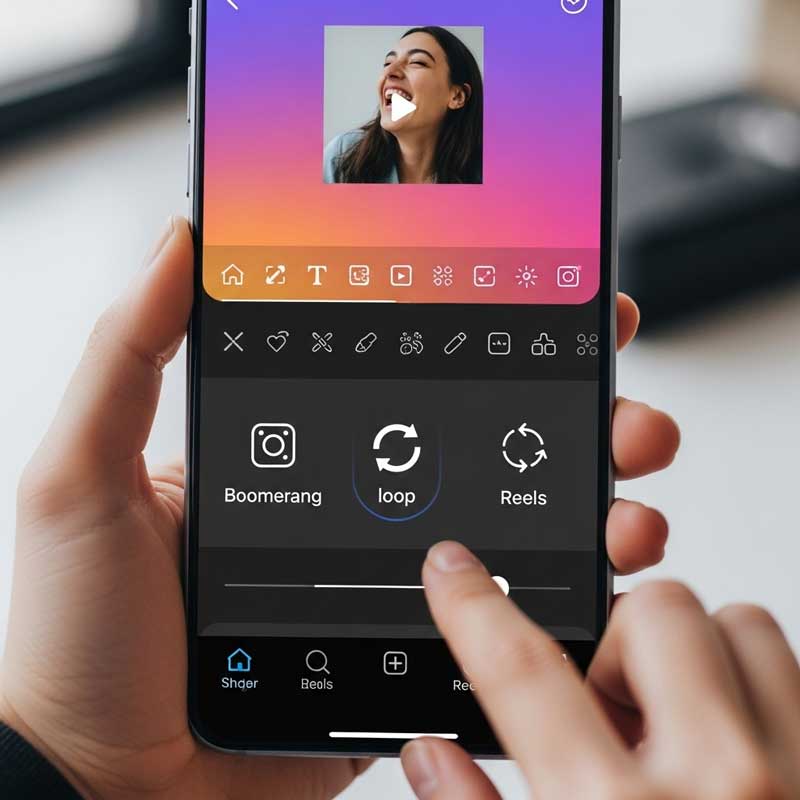
Boomerang is Instagram’s built-in loop tool. It records a short burst of motion, plays it forward, then reverses it — creating an automatic back-and-forth loop.
- Open Instagram and swipe right to open the Story camera
- Tap Boomerang from the options at the bottom of the screen
- Record a short 1–3 second action shot
- Tap the infinity symbol (∞) at the top to access Boomerang effects
- Choose from SlowMo, Echo, or Duo for different loop styles
- Add stickers, text, or music, then share to your Story
| Boomerang Effect | What It Does | Best For |
|---|---|---|
| Classic | Forward + reverse loop at normal speed | Any action shot |
| SlowMo | Forward + reverse loop in slow motion | Dramatic reveals, liquid, hair movement |
| Echo | Ghost trail effect as the clip loops | Movement with artistic emphasis |
| Duo | Splits the loop into two simultaneous clips | Creative, experimental content |

Method 2: Using Live Photos for Looping (iPhone Only)
iPhone Live Photos capture a brief moment of motion before and after you tap the shutter. You can convert these into seamless loops directly in the Photos app.
- Take a Live Photo with your iPhone camera (the circle icon on camera = Live Photo enabled)
- Open the photo in the Photos app
- Swipe up on the Live Photo to reveal effects
- Select Loop (plays forward continuously) or Bounce (plays forward and backward — similar to Boomerang)
- Tap the share icon and select Instagram Story
- Edit and post as usual
| Live Photo Effect | How It Loops | Best For |
|---|---|---|
| Loop | Plays the motion forward on repeat — seamless if start and end look similar | Nature, movement that can repeat naturally |
| Bounce | Plays forward then backward — similar to Boomerang | Quick actions, gestures, pouring |
Method 3: Using Third-Party Apps for Custom Loops
Third-party apps give you the most control — you can choose exactly which part of a video loops, how many times, and at what speed.
- Open one of these apps:
- Clideo (browser-based, free)
- CapCut (free mobile app)
- Adobe Premiere Rush (free tier available)
- Import your video into the app
- Find the Loop, Repeat, or Duplicate Clip feature
- Set how many times the clip should repeat
- Trim start and end points for a seamless transition
- Add music, text, or effects as desired
- Export at 1080p and upload to Instagram Story
| App | Platform | Free? | Best Feature for Looping |
|---|---|---|---|
| CapCut | iOS & Android | Yes | Duplicate clip + curve speed for seamless loops |
| InShot | iOS & Android | Yes (watermark-free paid) | Simple clip duplication and speed control |
| Clideo | Browser (any device) | Yes (watermark on free) | Set exact number of loops — no app needed |
| Adobe Premiere Rush | iOS & Android | Free tier available | Professional-quality export for clean loops |

Method 4: Using GIFs for Looping
GIFs loop automatically by definition — every GIF file is designed to repeat continuously. Upload a GIF to Instagram Story and it plays in a seamless, endless loop without any additional editing.
- Create a GIF using apps like Giphy, Photoshop, or your phone’s camera app
- Save the GIF to your camera roll
- Open Instagram Story and upload the GIF from your gallery
- Instagram automatically plays GIFs in a continuous loop
- Add stickers, text, or music for extra engagement

Method 5: Combining Multiple Clips for a Seamless Loop
- Open a video editor (CapCut, InShot, or Adobe Premiere Rush)
- Import the clip you want to loop
- Duplicate the clip multiple times on the timeline
- Carefully trim the start and end points so the last frame matches the first frame visually
- Export the combined video
- Upload to Instagram Story
Key to seamlessness: The loop break (where the last frame transitions back to the first frame) should be as smooth as possible. The closer the last and first frames are visually, the more invisible the loop point becomes.
How to Post Loop Videos Longer Than 15 Seconds
Instagram Stories are limited to 15-second segments per slide. Here’s how to handle longer loops:
| Video Length | What Instagram Does | What You Should Do |
|---|---|---|
| Under 15 seconds | Posts as a single story slide — loops automatically | Nothing extra needed |
| 15–60 seconds | Automatically splits into multiple 15-second segments | Upload directly — Instagram handles the splitting |
| Over 60 seconds | Will not upload to Stories | Use CapCut or Story Cutter to manually split into 15-second segments before uploading |
| Any length | Reels supports videos up to 90 seconds with automatic looping | Use Reels instead of Stories for longer loops |
Creative Ideas for Loop Videos on Instagram Story
| Loop Idea | Best Method | Why It Works |
|---|---|---|
| Time-lapse loops | CapCut or Clideo | Compresses long processes into hypnotic short loops |
| Stop-motion animation | GIF or combining clips | Frame-by-frame control creates distinctive visual style |
| Before & after transformations | Combining clips | Looping the reveal moment creates maximum impact |
| Product demos | Boomerang or CapCut | Shows the product in action repeatedly without requiring viewers to re-tap |
| Funny reactions / pet moments | Boomerang | Natural repetition of funny expressions amplifies the humor |
| Visual illusions | GIF or combining clips | Seamless loops create the illusion of infinite motion |
| Event teasers / countdowns | CapCut with text overlay | Looping urgency messaging keeps announcement top-of-mind |
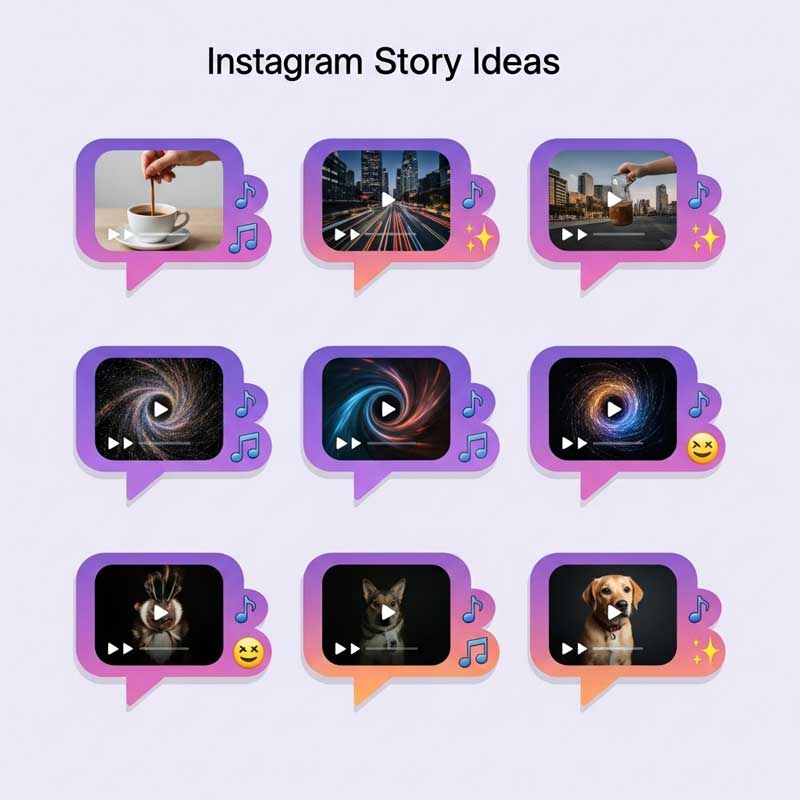
Tips for Making the Best Loop Videos on Instagram
| Tip | Why It Matters | How to Apply |
|---|---|---|
| Match first and last frame | The invisible loop point is what makes a loop feel seamless | Trim carefully so the video could play forever without a visible break |
| Use good lighting | Dark, grainy footage looks worse at full speed and in loops | Record near a window or with a ring light for clean, bright video |
| Keep it short | 3–5 second loops are more hypnotic than 15-second ones | Use Boomerang for the fastest, tightest loops |
| Stabilize your camera | Shaky footage is more noticeable in a loop | Use a tripod or phone gimbal, or brace your elbows |
| Add music that also loops | Mismatched audio and video lengths break the loop illusion | Add music in the editing app, not in Instagram — gives better timing control |
| Preview before posting | The loop may look different in the Story preview than in the editor | Always preview in Instagram’s story editor before sharing |
| Export at 1080p | Instagram compresses uploads — start with high resolution | Set export quality to 1080p or higher in your editing app |
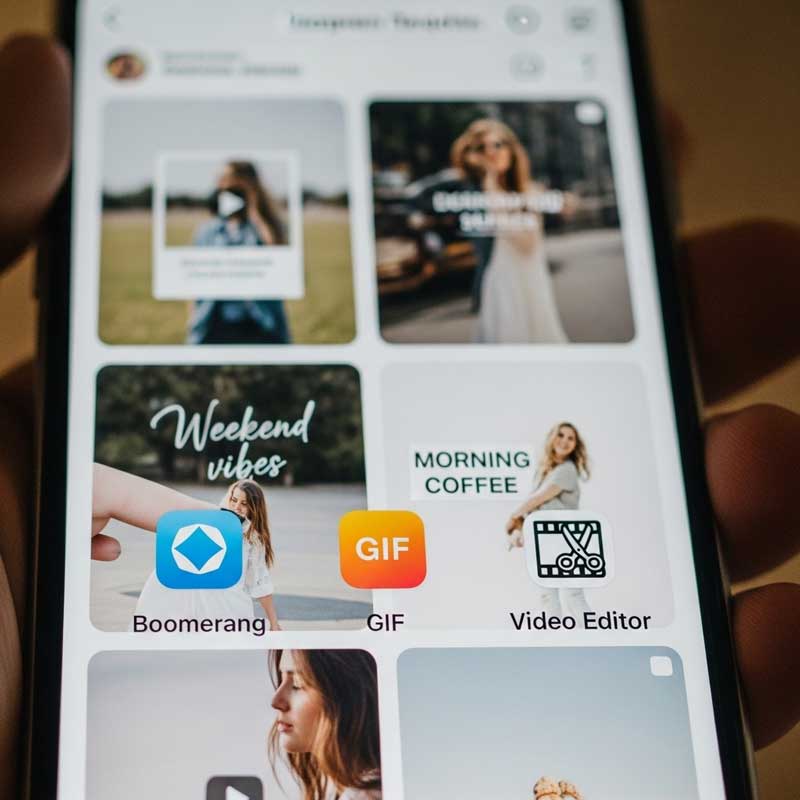

Troubleshooting: Common Loop Video Problems
| Problem | Cause | Fix |
|---|---|---|
| Video plays once and stops | Normal video files don’t loop automatically in Stories | Create the loop before uploading using Boomerang, a GIF, or a video editor |
| Visible jump at the loop point | First and last frames don’t match visually | Trim more carefully in CapCut or use Boomerang which handles this automatically |
| Choppy or jerky playback | Low frame rate or shaky original footage | Record at 60fps, use a tripod, and export at 1080p minimum |
| Video too long to upload | Stories don’t accept videos over 60 seconds | Split into 15-second segments using CapCut or Story Cutter, then upload each part |
| Music doesn’t sync with loop | Music added in Instagram doesn’t know when the video loops | Add music in CapCut before uploading for precise sync control |
| Video looks blurry after upload | Instagram compression + low-resolution export | Export at 1080p; enable High-Quality Uploads in Settings → Account → Data Usage |
| App crashes during editing | Outdated app or insufficient device memory | Update Instagram and your editing app; restart your phone; close background apps |
FAQ: Loop Videos on Instagram Story
Can you loop a video on an Instagram story?
Yes — but you need to create the loop before uploading. Instagram Stories don’t automatically loop standard video files. To get a looping effect, use one of these approaches: use Instagram’s Boomerang feature to record a built-in loop; convert a Live Photo to Loop or Bounce on iPhone; use CapCut or Clideo to duplicate and repeat your clip before exporting; or upload a GIF, which loops automatically. Once you upload a properly looped video or GIF to your Story, it will play continuously as viewers watch.
How do I make a seamless loop video for Instagram?
A seamless loop requires the last frame of the video to be visually as close as possible to the first frame — so the transition back to the beginning is invisible. In CapCut: import your clip, duplicate it, and carefully trim both ends until they match. For the smoothest results, choose footage where the subject returns to roughly the same position at the end (a wave returning to shore, a hand dropping back to a surface, a dancer returning to starting pose). Boomerang does this automatically by playing forward then backward.
How do I post a loop video longer than 15 seconds?
For videos between 15 and 60 seconds, Instagram automatically splits them into 15-second segments when you upload — just upload normally and Instagram handles it. For videos over 60 seconds, Instagram won’t accept them for Stories. Use CapCut or Story Cutter to manually cut your video into 15-second segments, save each to your camera roll, then upload them one by one in order. Each segment will play as your followers tap through. For long continuous loops, consider posting to Reels instead — Reels supports up to 90 seconds and loops by default.
How do I loop a video on iPhone for Instagram?
iPhone users have three good options: (1) Use Instagram’s Boomerang directly in the Story camera — fastest option. (2) Convert a Live Photo to Loop or Bounce in your Photos app, then share to Instagram Story — gives you loops from your existing photos. (3) Use CapCut (free on iPhone) to import any video, duplicate the clip multiple times, trim for seamlessness, and export before uploading to Instagram. Option 2 is the most iPhone-specific and produces naturally smooth results.
Can I use a GIF as a loop video on Instagram Story?
Yes — GIFs loop automatically because looping is built into the GIF file format. Upload a GIF to your Instagram Story and it will play in a continuous loop without any additional settings. You can create GIFs from existing videos using apps like Giphy, GIPHY Cam, or photo editing software. The main limitation is that GIFs have lower resolution and color quality than MP4 videos, so they work best for short, graphic-style loops rather than cinematic footage.
What’s the difference between Boomerang and a normal loop video?
Boomerang records a short burst of motion and then plays it both forward and backward in a continuous loop — creating a back-and-forth effect. It’s automatic and designed specifically for quick, fun moments. A “normal” loop video is when you take any clip and repeat it so the end transitions back to the beginning and plays forward again — there’s no backward motion. Boomerangs are faster to create and have a distinctive style; custom loops give you more control over duration, direction, and content type. Both work well on Instagram Stories.
Related Articles
| Article | Why It’s Relevant |
|---|---|
| How to Put Slow Motion Video on Instagram Story | Another video technique to combine with loops |
| How to Change Photo Shape in Instagram Story | Creative story editing to pair with loop content |
| Instagram Story Sticker Placement | Optimal placement for stickers on your loop videos |
| Instagram Story Safe Zone | Make sure your loop video content isn’t cut off by UI elements |
| Navigation on Instagram Story | Track whether loop videos are retaining viewers longer |
| How to Ask for Song Suggestions on Instagram Story | Add the perfect music to your loop videos |