


Instagram story pinning lets you attach a sticker, text, or emoji to a specific point in a video so it moves with the subject as the video plays. When it stops working — the pin option disappears, the sticker doesn’t move, or the app freezes — the fix is almost always one of the same five causes. This guide gives you a direct troubleshooting path, the correct pinning steps, and answers to the most common questions.

What Is Instagram Story Pinning?
Story pinning is a feature in Instagram’s story editor that lets you anchor a sticker, text, or emoji to a specific position in a video. Unlike placing a sticker on a static image (where it just sits wherever you drop it), pinning to a video frame causes the item to track with the motion in the video as it plays.
| What You Can Pin | How It Behaves | Best Use |
|---|---|---|
| Stickers (emoji, GIFs, location, etc.) | Follows the movement in the video frame it was pinned to | Fun effects, highlighting moving subjects |
| Text | Stays attached to the specific video moment and position | Labeling products, adding commentary to specific moments |
| Emoji | Moves with the object in the video | Pointing at faces, objects, or moments of interest |
Why Is Instagram Story Pinning Not Working?
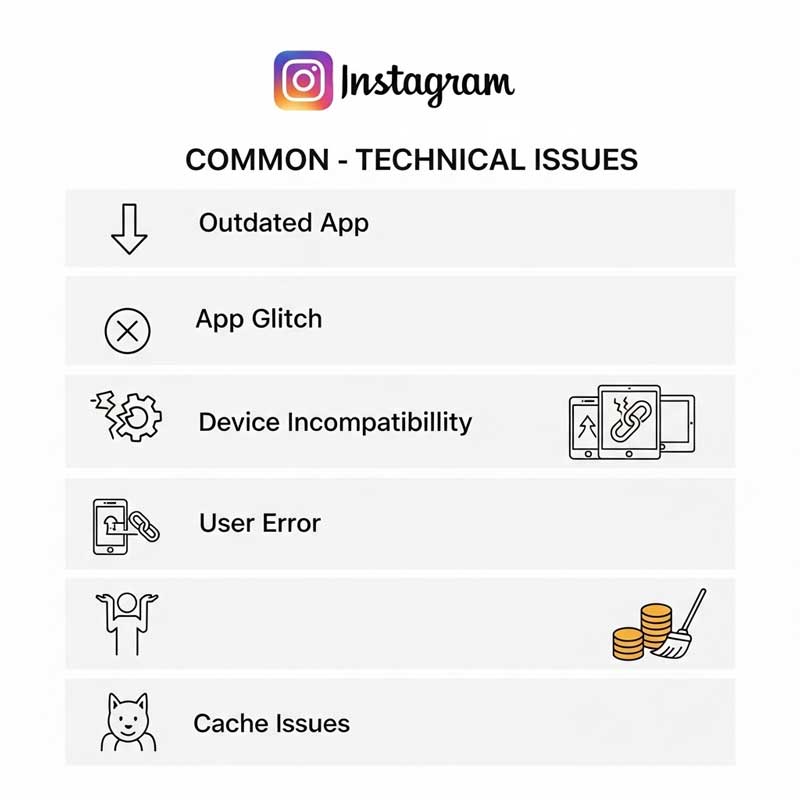
Most pinning failures trace back to one of these five causes:
| Cause | How It Breaks Pinning | How Common | Fix |
|---|---|---|---|
| Outdated Instagram app | Pinning feature missing or behaving incorrectly | Very common | Update Instagram to latest version |
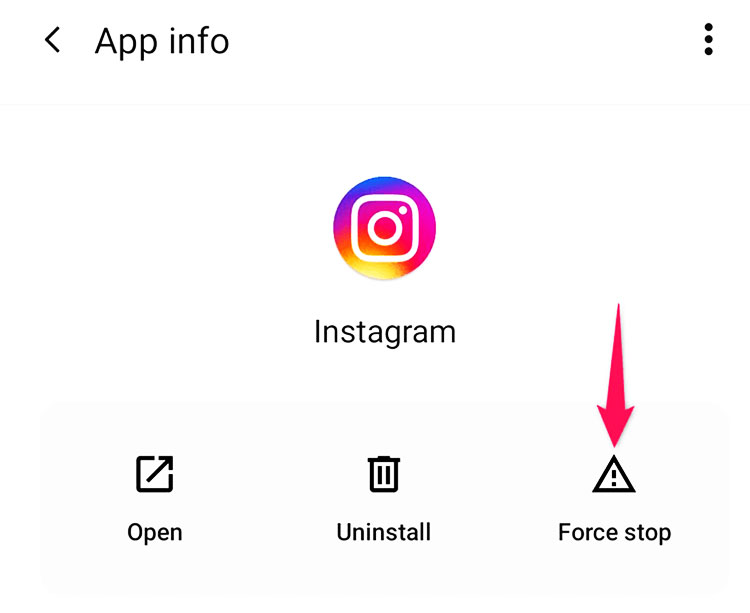
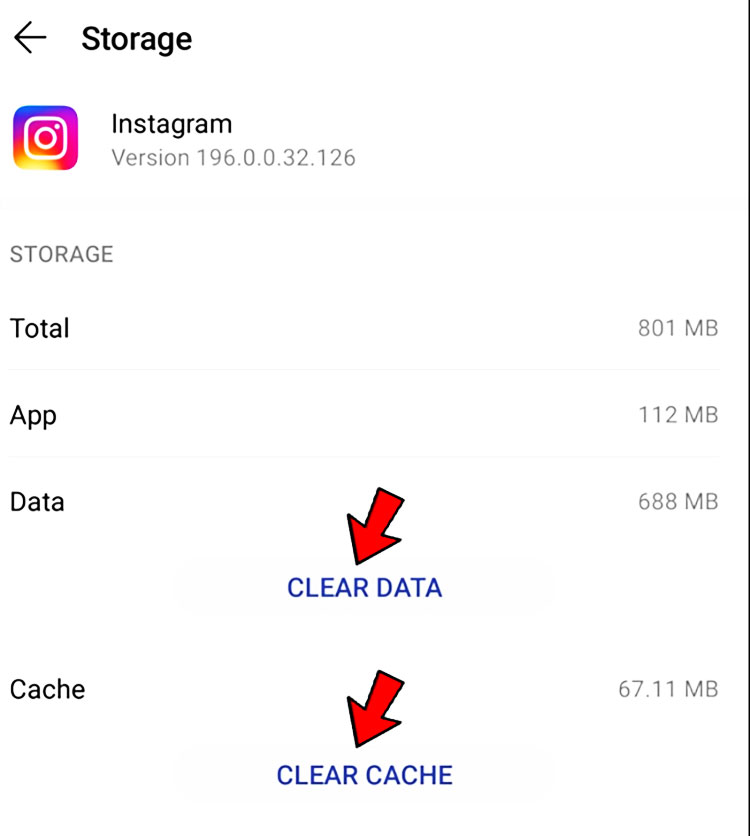
| App glitch or corrupted cache | Pin option doesn’t appear when holding the sticker | Common | Force close, clear cache, restart |
| Wrong technique | Sticker not held long enough — pin option never triggers | Common (especially for new users) | Hold the sticker for 2+ seconds while video is paused |
| Device/OS incompatibility | Pinning not supported on older hardware or OS versions | Less common | Update OS or try on a different device |
| Feature rolled out in phases | Account doesn’t have access to the latest version of the feature | Occasional | Update app + wait — usually resolves within days |

How to Fix Instagram Story Pinning Not Working (Step-by-Step)
| Fix | How to Do It | Works For |
|---|---|---|
| 1. Update Instagram | App Store (iPhone) or Google Play (Android) → search Instagram → Update | Most pinning issues — always try this first |
| 2. Force close the app | iPhone: swipe up from bottom, swipe Instagram away. Android: Recent apps → swipe Instagram away | Temporary glitches causing pin option to disappear |
| 3. Clear Instagram cache | Android: Settings → Apps → Instagram → Storage → Clear Cache. iPhone: Delete and reinstall the app | Corrupted temporary data causing feature malfunction |
| 4. Restart your device | Power off completely → wait 30 seconds → power on | System-level memory issues |
| 5. Reinstall Instagram | Delete the app → reinstall from App Store or Google Play → log back in | Persistent bugs not fixed by cache clearing |
| 6. Update your device OS | iPhone: Settings → General → Software Update. Android: Settings → System → Software Update | Device incompatibility with latest Instagram features |
| 7. Try on a different device | Log in to Instagram on another phone or tablet and test pinning | Isolates whether the issue is device-specific |
| 8. Report to Instagram | Settings → Help → Report a Problem → Something Isn’t Working | Bug that persists after all other fixes |
How to Pin a Sticker on Instagram Story (Correct Method)
If you’ve ruled out the technical issues above, the problem may be technique. Here’s the exact process that triggers the pin option:
- Open Instagram and tap the camera icon (top left) or swipe right
- Upload or record a video (pinning only works on videos — not photos)
- Tap the sticker icon at the top of the screen
- Select a sticker, emoji, or tap “Aa” for text
- Place the sticker on the story canvas
- Pause the video at the exact frame where you want to pin the sticker
- Press and hold the sticker for 2–3 seconds until the “Pin” option appears
- Tap Pin to anchor the sticker to that video frame and position
- Press play to preview — the sticker should now move with the video
- Share your story
Critical note: Pinning only works on video — if your story uses a photo background, the pin option will never appear regardless of what you do.

Troubleshooting: Specific Pinning Scenarios
| Specific Problem | Most Likely Cause | Fix |
|---|---|---|
| Pin option never appears when holding sticker | Story is a photo (not a video), OR app needs update | Confirm you’re working with a video; update the app |
| Sticker is pinned but doesn’t move with the subject | Pinned to the wrong frame, or video has too little motion for tracking to work well | Unpin, scrub to the right frame, and re-pin |
| Pin option appears but tapping it does nothing | App glitch or memory issue | Force close app, clear cache, retry |
| Pinning works on some stickers but not others | Some GIF or animated stickers may not support pinning | Try with an emoji or simple sticker instead of an animated GIF |
| Pinning works in the editor but disappears after posting | App bug during rendering | Update Instagram; report to Instagram support |
| App crashes when trying to pin | Insufficient device memory or corrupted cache | Close background apps, clear cache, restart device |
| Feature worked before but stopped after an update | Bug introduced in the latest Instagram update | Check if others are reporting the same issue; wait for Instagram to patch it |
All Instagram Story Sticker Types & How to Use Them
| Sticker Type | What It Does | Can Be Pinned to Video? | Best Use |
|---|---|---|---|
| Emoji / GIF sticker | Adds an animated or static emoji | ✅ Yes (emoji) / ⚠️ Sometimes (GIF) | Fun effects, pointing at subjects |
| Text | Adds typed text in different fonts/colors | ✅ Yes | Labels, commentary, captions |
| Music sticker | Adds a song with lyrics or just audio | ❌ No | Adding a soundtrack to your story |
| Poll sticker | Lets followers vote on a two-option question | ❌ No | Audience engagement and feedback |
| Question sticker | Lets followers submit text answers | ❌ No | Q&A sessions, feedback collection |
| Link sticker | Adds a tappable link to your story | ❌ No | Driving traffic to websites or products |
| Location sticker | Tags a geographic location | ✅ Yes | Travel content, local business stories |
| Shopping / Product sticker | Tags products for direct purchase | ❌ No | E-commerce, product promotion |
| Add Yours sticker | Starts an interactive story thread | ❌ No | Community challenges, trend participation |
| Countdown sticker | Shows a timer to a specified date/time | ❌ No | Launch announcements, events |
| Selfie sticker | Adds a small selfie from your front camera | ✅ Yes | Reaction content, commentary while showing video |




FAQ: Instagram Story Pinning Not Working
Why is it not letting me pin on Instagram stories?
The most common reasons are: (1) your Instagram app is outdated — update it first; (2) you’re trying to pin on a photo instead of a video — pinning only works on video stories, never on photos; (3) you’re not holding the sticker long enough — you need to press and hold for 2–3 seconds while the video is paused to trigger the pin option; or (4) a temporary app glitch — force close Instagram, clear the cache, and try again. If none of those work, reinstalling the app resolves most persistent pinning failures.
Can you still pin stickers on Instagram stories in 2025?
Yes — pinning is still an active feature in Instagram’s story editor in 2025. However, it’s only available for video stories (not photo stories), and requires a reasonably up-to-date version of the Instagram app. If you had pinning working before and it stopped after an app update, the most likely explanation is a bug in that specific update. Check for a newer update, which usually patches these issues within a few days of being reported.
Why does the pin option appear but then nothing happens when I tap it?
This is typically an app glitch. The pin button displays but the function fails to execute because of corrupted cached data or a memory issue. The fix: force close Instagram (don’t just minimize it — fully close it from your recent apps), then go to Settings → Apps → Instagram → Storage → Clear Cache (Android) or delete and reinstall (iPhone). After clearing the cache, reopen Instagram and try pinning again. This resolves the “pin button does nothing” problem in the majority of cases.
Why does my pinned sticker not move with the video?
If you pinned the sticker but it stays static instead of tracking with the video, there are two possible explanations: (1) the video doesn’t have enough motion or contrast for Instagram’s tracking algorithm to follow — try a video with clearer, distinct movement; or (2) you unpinned it accidentally — check if the sticker has a small anchor icon indicating it’s still pinned. To re-pin, press and hold the sticker, scrub the video to the frame where you want it anchored, and tap Pin again.
Can I pin stickers on Instagram stories on a computer or desktop?
No. Story pinning is only available in the Instagram mobile app on iOS and Android. Instagram’s desktop and browser versions have a much more limited story editor that doesn’t include pinning, animated stickers, or most of the creative features available in the mobile app. To use pinning, you need to create the story on your phone — there’s no workaround to do this from a computer.
Can all stickers be pinned to videos?
No — not all stickers support pinning. Stickers that can typically be pinned include: emoji stickers, text, location stickers, and selfie stickers. Stickers that generally cannot be pinned include: music stickers, poll stickers, question stickers, link stickers, shopping stickers, countdown stickers, and the Add Yours sticker. If you’re trying to pin an interactive sticker (like a poll or link) and the pin option isn’t appearing, it’s because those stickers are not designed to be tracked to a video position — they’re meant to stay in a fixed position on the story canvas.
Why did pinning stop working after an Instagram update?
New Instagram updates occasionally introduce bugs that break specific features — pinning is one that gets affected fairly regularly. When this happens to many users simultaneously, Instagram usually pushes a fix within a few days. In the meantime: check if there’s already a newer update that patches the issue, report the problem through Settings → Help → Report a Problem → Something Isn’t Working, and as a temporary workaround, try using an older version of Instagram if you have access to a cached version through a third-party APK manager (Android only — this carries some risk).
Related Articles
| Article | Why It’s Relevant |
|---|---|
| Instagram Story Sticker Placement | Best practices for placing stickers in the safe zone and for maximum impact |
| Instagram Story Deleted Before 24 Hours | Another common Instagram Story technical issue and how to fix it |
| How to Make Videos Loop on Instagram Story | Another video-based story feature to use alongside pinning |
| How to Ask for Song Suggestions on Instagram Story | Using interactive stickers in Stories |
| Who Clicked Your Link on Instagram Story | Tracking story engagement including link sticker performance |
| Instagram Story Safe Zone | Make sure pinned stickers don’t appear in the UI cutoff zone |